Normalizing Histograms
In some cases, you may need to normalize the histogram of a dataset with the histogram of a reference. For example, to improve the contrast of an image based on the histogram of another image.
This option is available in the Dataset pop-up menu item Normalize Histogram and is performed with a function known as 'Histogram Matching' (also called 'Histogram Specification'). This is a method of image processing that adjusts the pixel values in an image so that its histogram matches the histogram of a reference image.
This is achieved is by calculating the cumulative distribution function (CDF) of the pixel intensities in both the source and reference images and then matching the CDF of the source image to the CDF of the reference image. The resulting image has the same pixel value distribution as the reference image, effectively matching the two histograms.
Comparison of original and normalized image histograms

- Right-click the image data that you need to normalize in the Data Properties and Settings panel.
- Choose Normalize Histogram in the pop-up menu.
Note This item will not be available unless there is additional image data available that can be used as the reference.
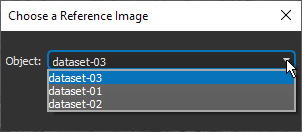
- Select the reference image in the Choose a Reference Image dialog, as shown below.
- Click OK.
When processing is complete, you can compare the histograms of the processed data with the original data or the reference image (see Comparing Histograms).
